Face authentication is an important step for users who need to verify their identity on Poppo Live. Whether you’re a new user or preparing to access specific platform features, understanding how the verification process works can help you complete it correctly.
In this guide, we’ll explain how to complete face authentication on Poppo Live, the requirements you should know before starting, and how to avoid common problems during verification.
Step 1: Open the Poppo Live App
First, open the Poppo Live application on your mobile device and make sure you’re logged in to your account.
Once the app opens, you’ll be taken to the main screen, where you can access your profile and other platform features.
Step 2: Go to Your Profile
Tap the Profile icon in the bottom-right corner of the screen.
This will open your personal profile page, where you can access your account information and settings.
Step 3: Find the Face Authentication Option
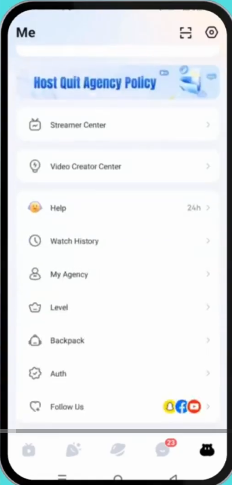
On your profile page, look for the O icon (Auth) and tap it to access the available options.
You should see the face authentication option. Select it to proceed to the verification screen.
Note: The location or appearance of certain options may vary depending on your app version.
Step 4: Check the Face Authentication Requirements
Before starting the verification process, make sure you meet the requirements and are ready to use your device’s camera.
Keep the following points in mind:
- Age requirement: You must be at least 18 years old to complete the process described in this guide.
- Good lighting: Choose a well-lit environment so the camera can capture your face clearly.
- Remove glasses and masks: Remove glasses or face coverings if prompted or if they prevent the app from recognizing your face.
- Clean camera lens: Make sure your device’s front camera lens is clean and unobstructed.
- Stable position: Hold your phone steadily and position your face clearly in front of the camera.
Preparing these things beforehand can help reduce verification problems.
Step 5: Start Face Authentication
Once you’re ready, tap the Start to Certificate button at the bottom of the screen, or the equivalent button shown in your version of the app.
The application will then guide you through the face verification process.
Follow the instructions displayed on your screen carefully.
Step 6: Position Your Face Inside the Circle
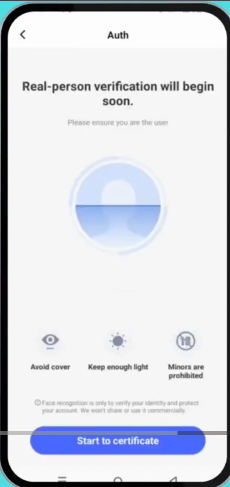
During verification, you’ll be asked to position your face inside a circle displayed on your screen.
For the best results:
- Hold your phone at a comfortable distance from your face.
- Make sure your entire face is visible inside the circle.
- Stay in a well-lit environment.
- Avoid moving your phone excessively while the app processes your face.
- Follow any additional instructions shown on the screen.
Wait for the application to finish processing your verification. If successful, the app should display a confirmation or update your verification status.
Important: Can You Use Face Authentication on Multiple Poppo Live Accounts?
One important thing to understand is that Poppo Live may restrict the use of the same face verification across multiple accounts.
If your face has already been verified on another account, you may be unable to complete verification on a new account. The platform’s restrictions and eligibility rules determine whether another verification attempt is permitted.
If you encounter this problem, try logging back into your previously verified account. If you believe the restriction is an error, contact official Poppo Live support for assistance.
Important: Do not assume that creating a new account will bypass an existing verification restriction.
Common Face Authentication Problems and Solutions
1. Face Authentication Fails
Check that your face is clearly visible, the lighting is adequate, and the camera lens is clean. Then follow the app’s instructions and try again if another attempt is available.
2. The App Cannot Detect Your Face
Move to a brighter location and position your face directly in front of the camera. Remove anything that obstructs your face if the app requires it.
3. You Have Already Verified Another Account
If the platform indicates that your face is already associated with another account, log in to that account or contact official support to clarify your available options.
4. The Face Authentication Option Is Missing
Make sure you’re using the official Poppo Live application and check whether an update is available. If the option remains unavailable, consult the platform’s official support team.
Conclusion
Completing face authentication on Poppo Live is straightforward when you follow the correct steps. Open the app, navigate to your profile, locate the face authentication option, prepare your device and environment, and follow the on-screen verification instructions.
Remember to use clear lighting, keep your camera lens clean, and check the platform’s account verification rules before starting.
We hope this guide helps you complete face authentication successfully.
Visit PoppoLive.xyz for more Poppo Live tutorials, account setup instructions, and helpful guides for hosts and agency owners.